If you just signed up for Zoho CRM and you would like to create and add your first lead, or you just want to import your existing leads into the system, this training guide will help you out as a first time user in navigating the Leads Module of Zoho CRM.
This guide shows you everything from opening Zoho CRM to completing the import process.Part One: How to Create a Lead in Zoho CRM
STEP 1: Log in to Zoho CRM
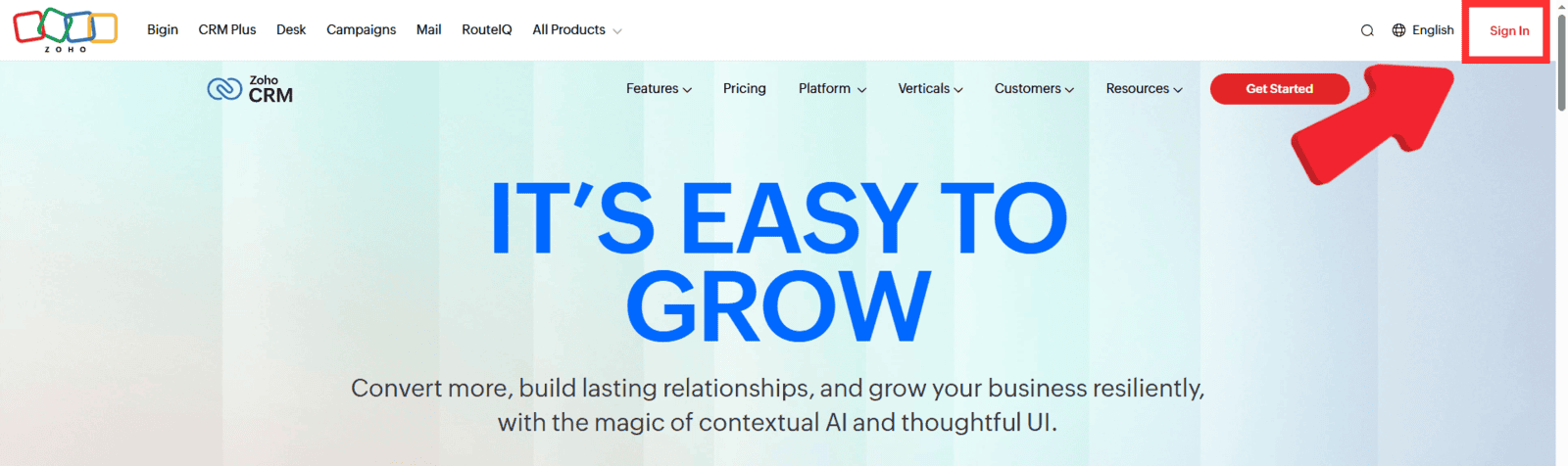
Open your web browser and access Zoho CRM using crm.zoho.com
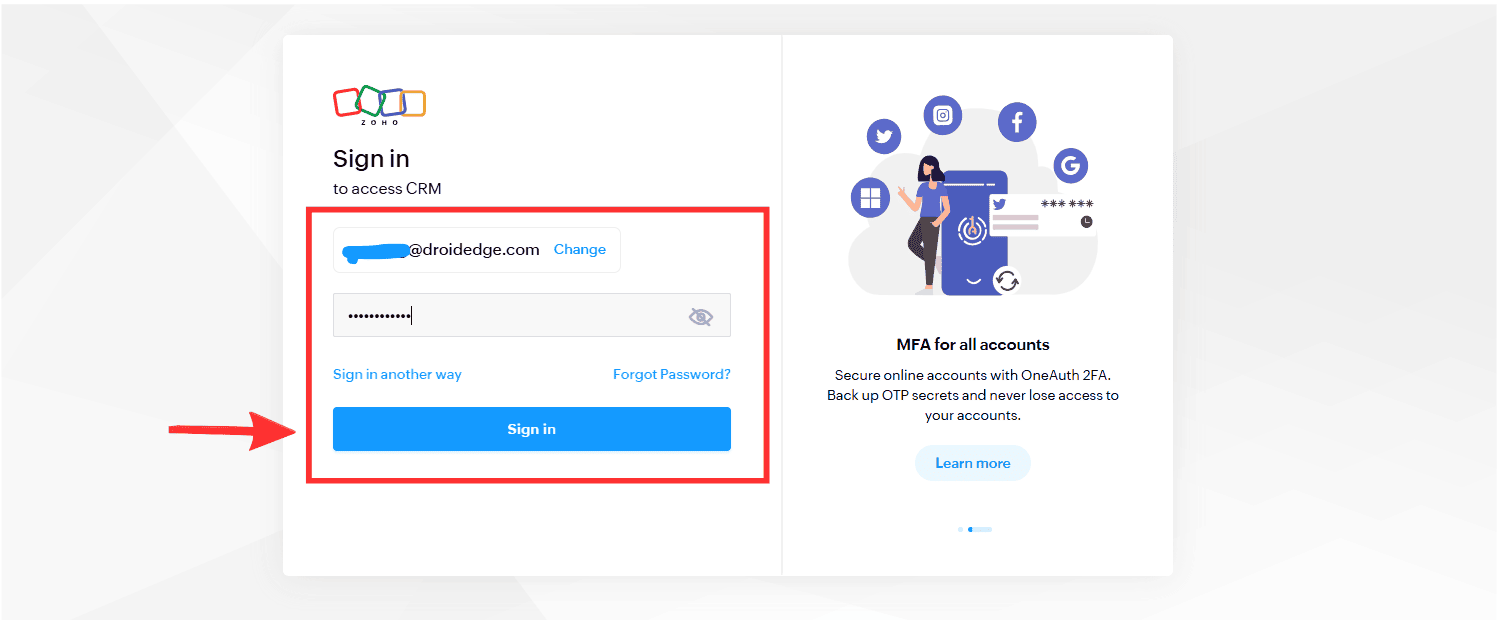
Enter your username and password to access your dashboard.STEP 2: Go to the Leads Module
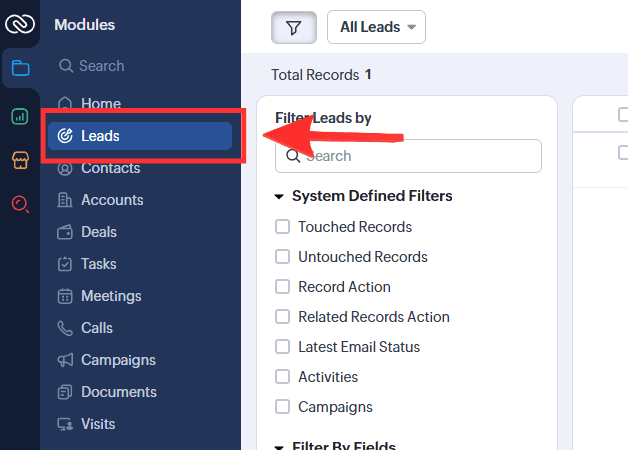
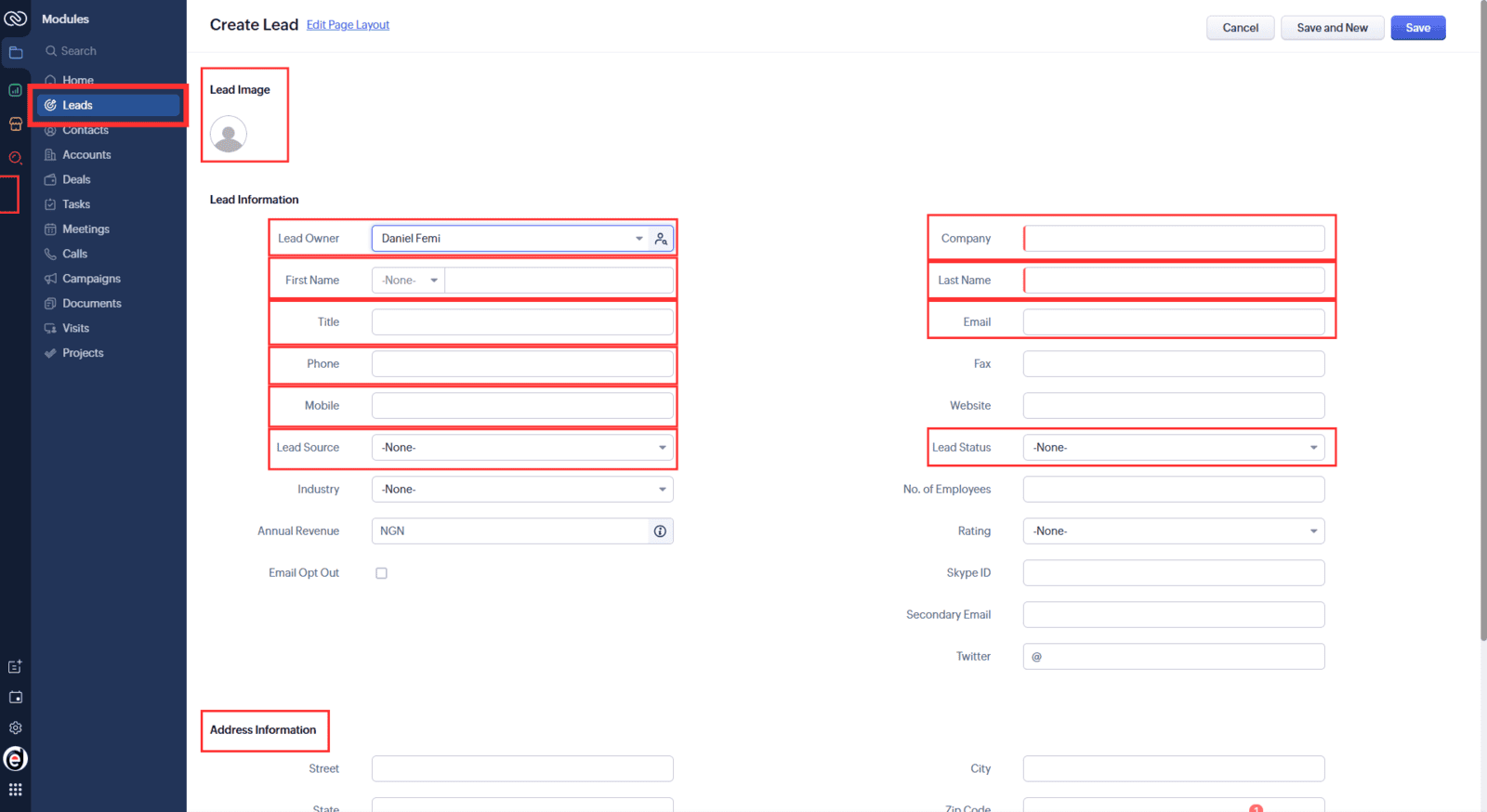
From the main menu on the left, click Leads.STEP 3: Click “Create Lead”
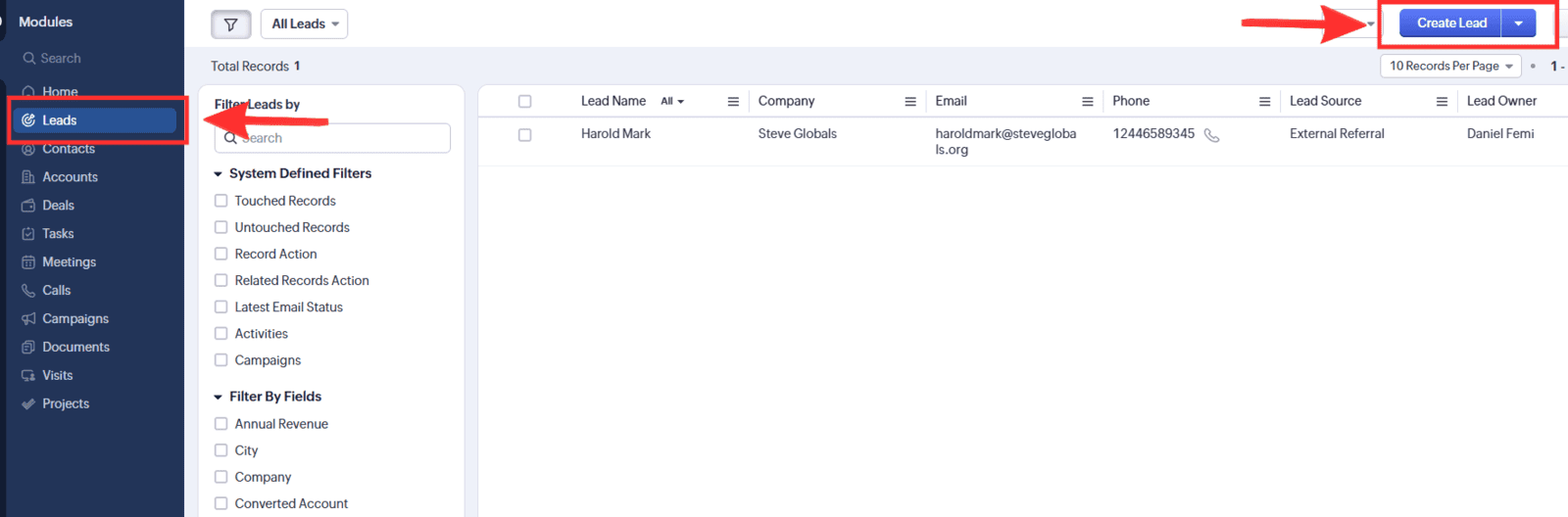
Inside the Leads Module, click the button labeled Create Lead in the top right corner of the page. STEP 4: Fill in Lead Details
Enter the information for your lead, including fields like: - Lead Owner
- First Name
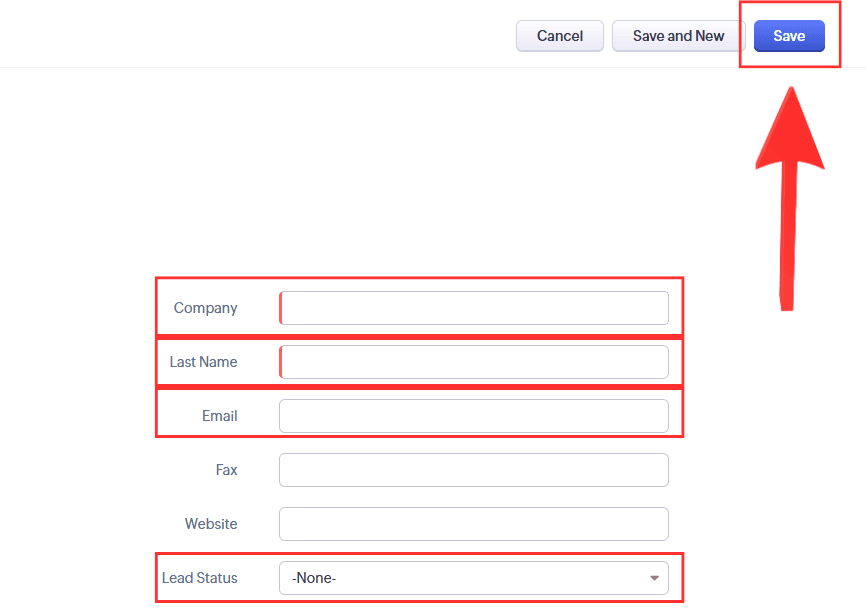
- Last Name (mandatory)
- Company (mandatory)
- Email
- Phone
- Lead Source
STEP 5: Save the Lead
After completing the details, click Save.
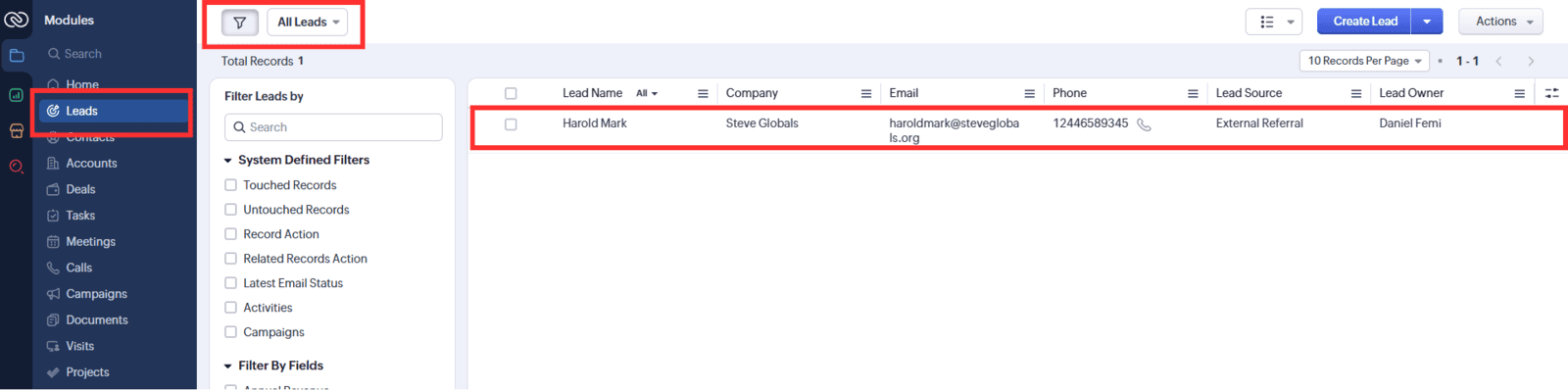
Your new lead is now in the CRM. Part Two: How to Import Leads in Zoho CRM
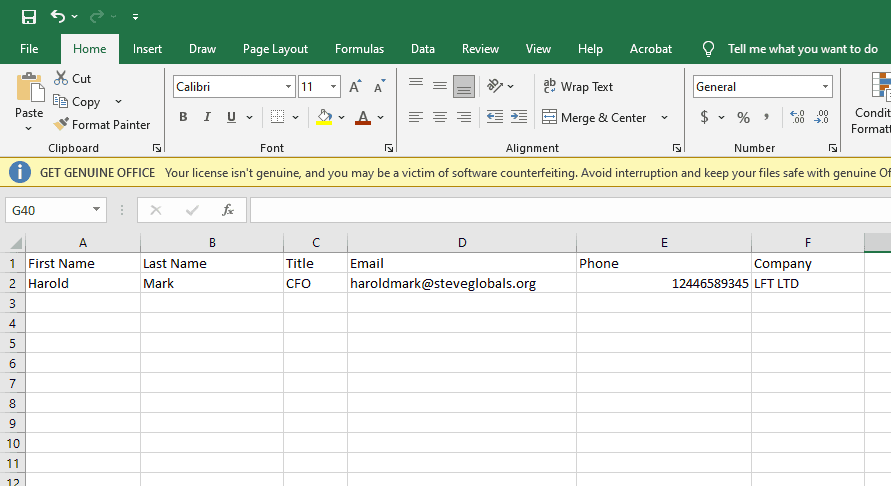
STEP 1: Prepare Your Leads File
Make sure your file is in CSV, XLS, or XLSX format and includes headers for each column (e.g., First Name, Last Name, Email, Phone Numbers, Company). Ensure required fields such as “Last Name” and “Company” are filled.STEP 2: Open the Leads Module
Navigate to Leads in Zoho CRM. STEP 3: Click “Import”
Look for the Import button or the More Options (⋮) icon, and choose Import Leads.STEP 4: Upload Your File
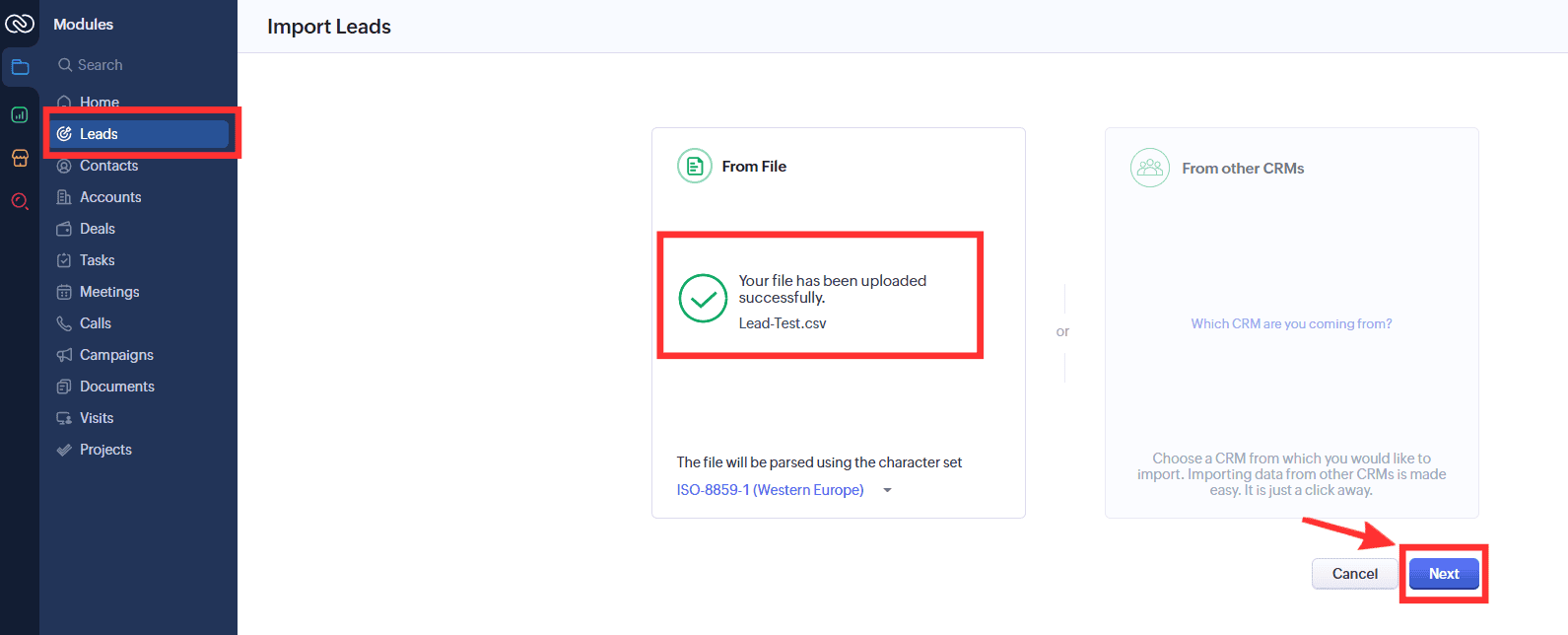
Select the file you prepared and upload it.STEP 5: Choose Import Settings
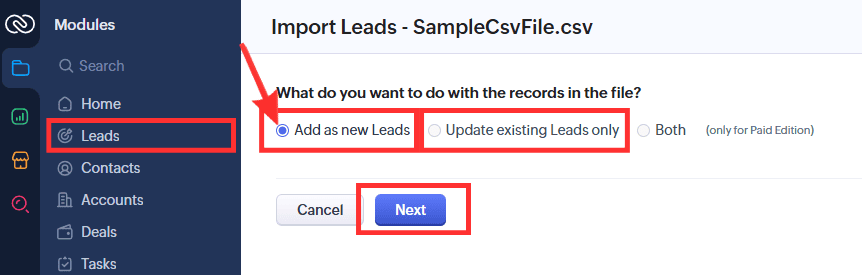
- Duplicate Check (by email/phone or both)
- Record owner assignment
- Whether to overwrite or skip duplicates
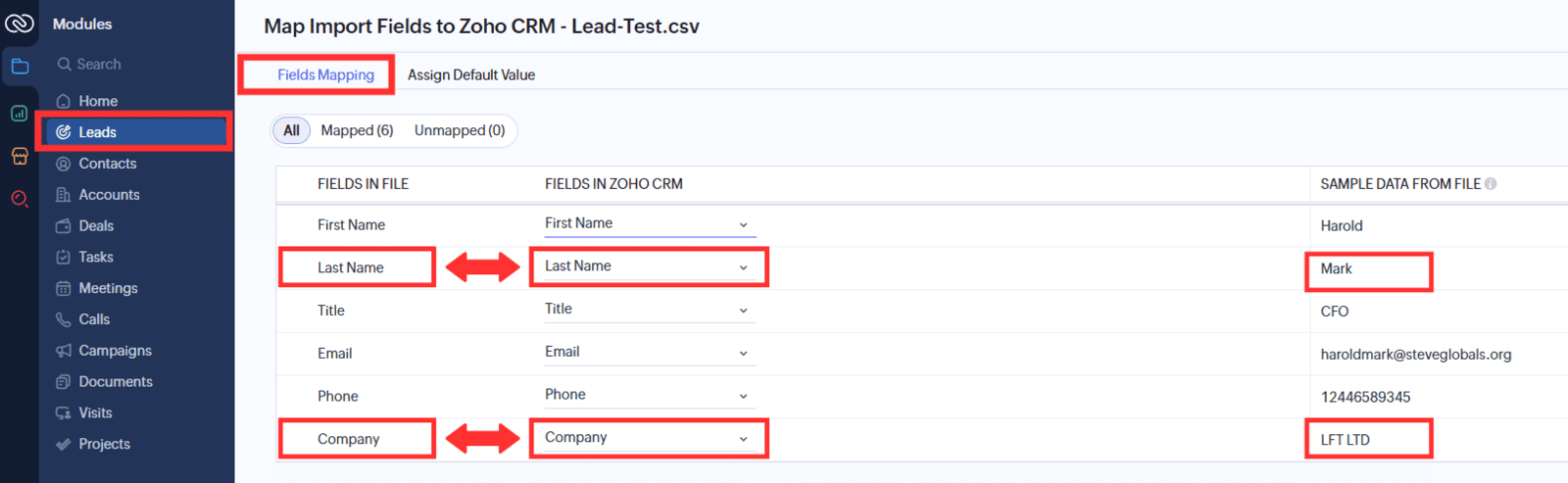
STEP 6: Map Your Fields
Match the columns in your file to Zoho CRM fields (e.g., map “Email” in your file to the CRM Email field). Required fields like “Company” must be mapped.STEP 7: Start the Import Process
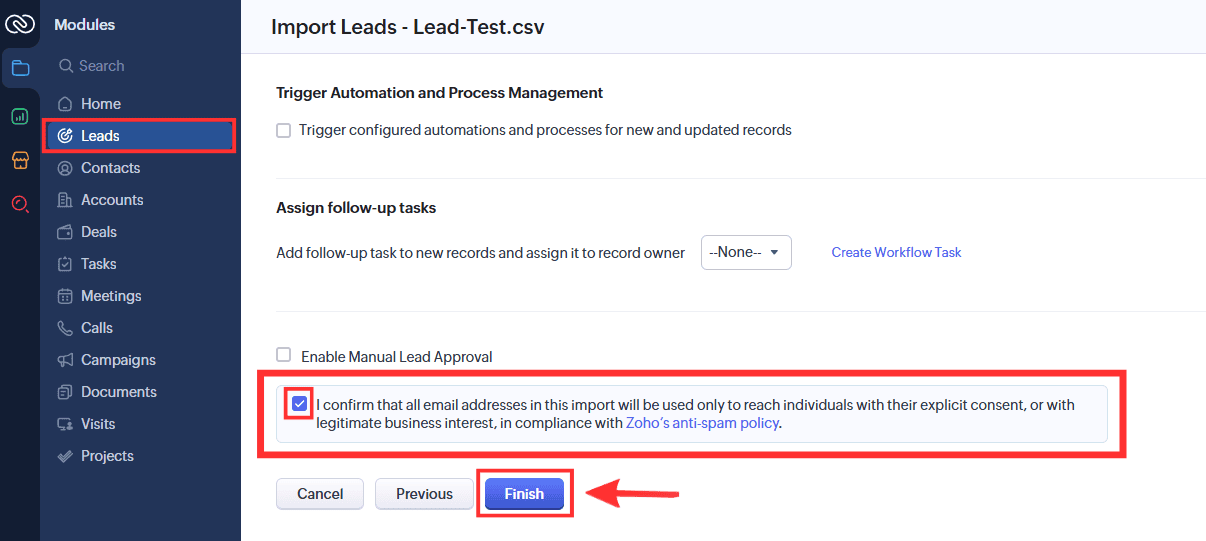
Click Import to begin. Wait for confirmation. Conclusion
In this guide, we’ve shown you how to create a lead manually and also how to import multiple leads in Zoho CRM. Whether you’re adding a single lead or hundreds at once, these quick and easy steps will help you get it done accurately.