
Expense Policies in Zoho Expense define the rules and controls that determine how your employees submit expenses in your organization. These policies help ensure that all expense claims comply with internal guidelines, budget limits, and regulatory requirements before they are submitted for approval.
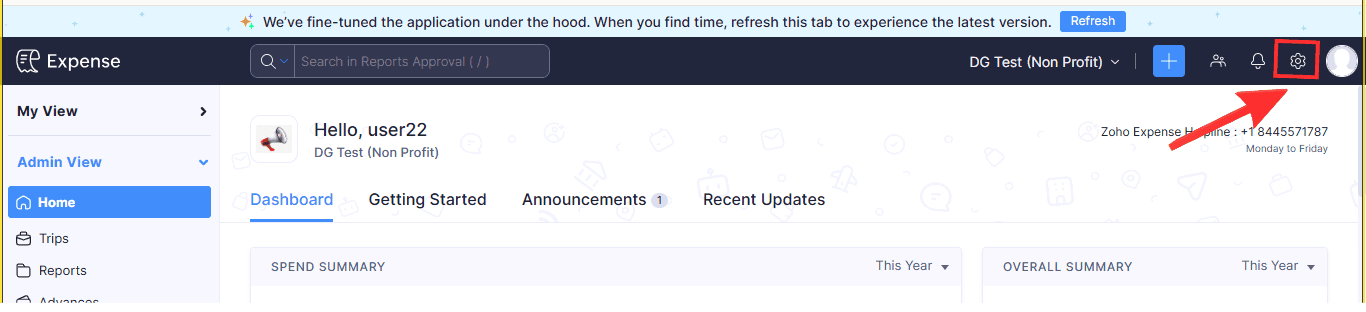
STEP 1: Go to Settings on your home screen
On your home screen, click on the settings icon on the top right corner
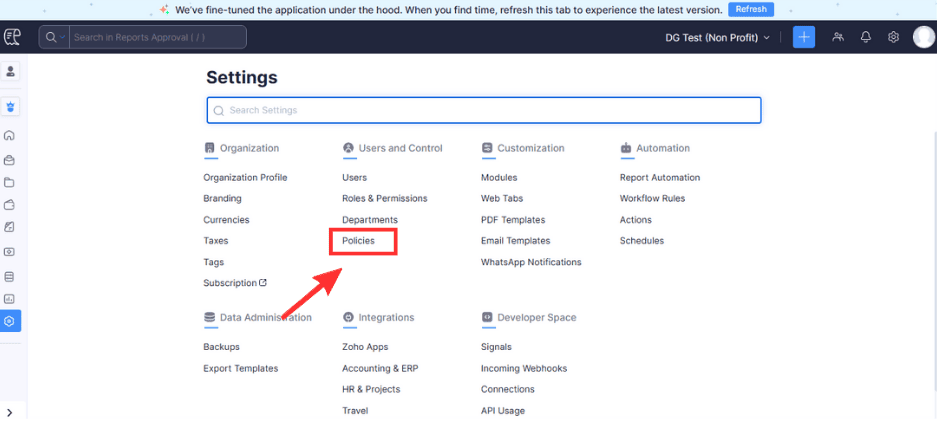
STEP 2: Click on Policies
Under the Users and Control settings, click on Policies
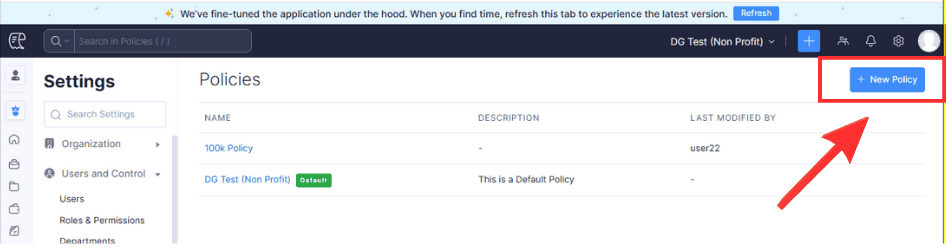
STEP 3: Click on New Policy
At the top right corner click on “new policy”
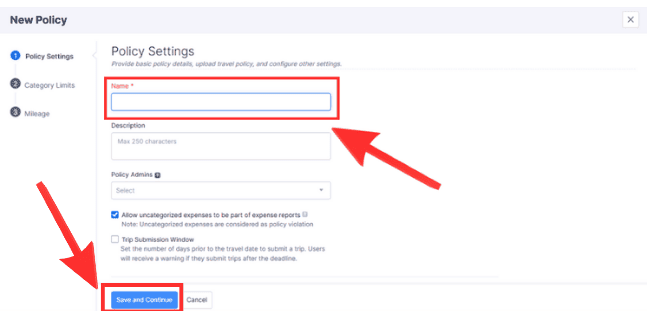
STEP 4: Create the name of the Policy you are creating
Then click on the save and continue button to move to the next page
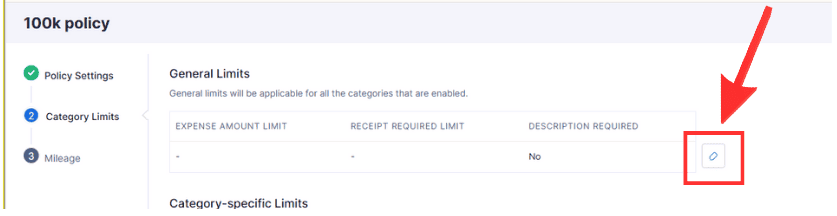
STEP 5: Click on the "edit" icon
When the next page pops up, then you click on the edit button, which will be used to set the limit in figure for all expense categories in the system.
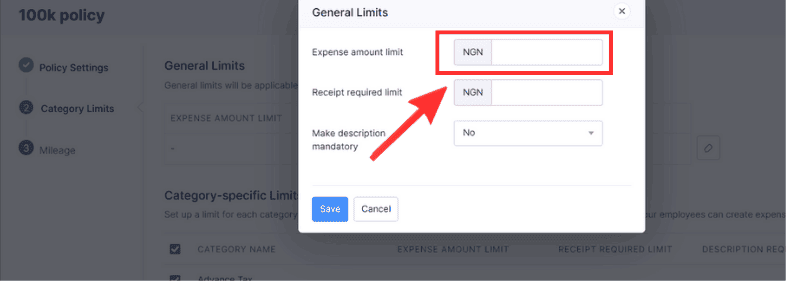
STEP 6: Input the expense amount limit you intend to set
Here, it is necessary that you type in figure, which is the desired general limit you intend to set for all expense categories.
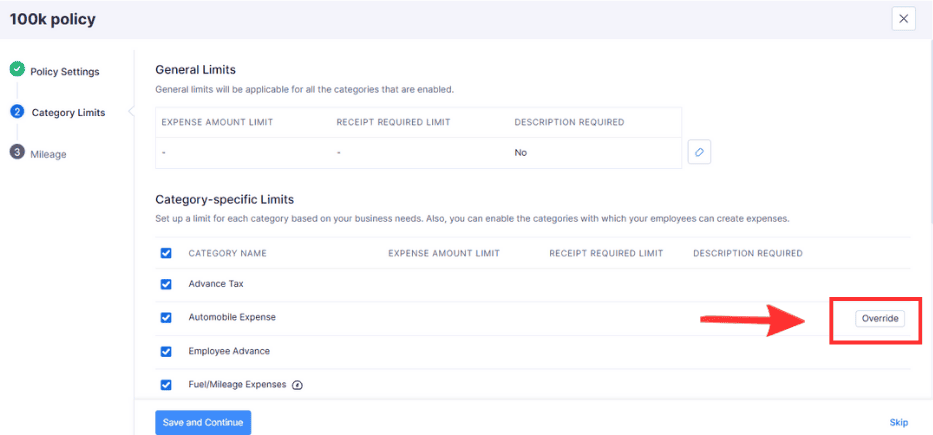
STEP 7: For individual expense categories, you can override and specify a desired expense limit different from the general limit set
For this, you can hover your mouse around the expense category you wish to override, then click on override
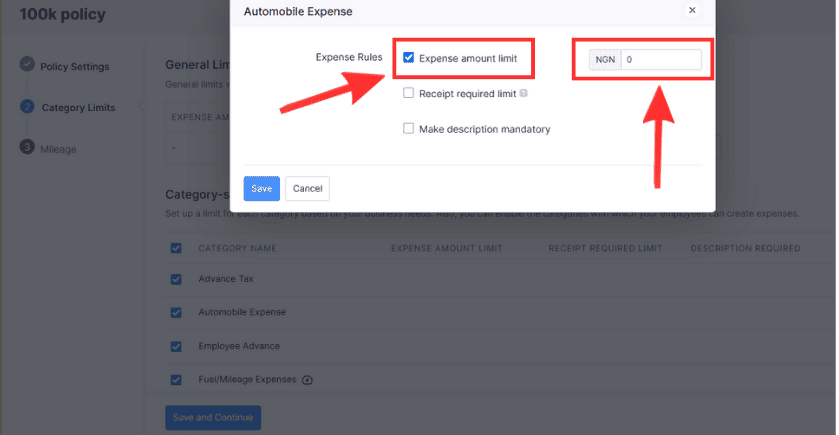
STEP 8: Check the expense amount limit box to be able to type in the specific desired limit
You will type in the desired amount limit that you want to set for the specific expense category you wish to override, then click on save.
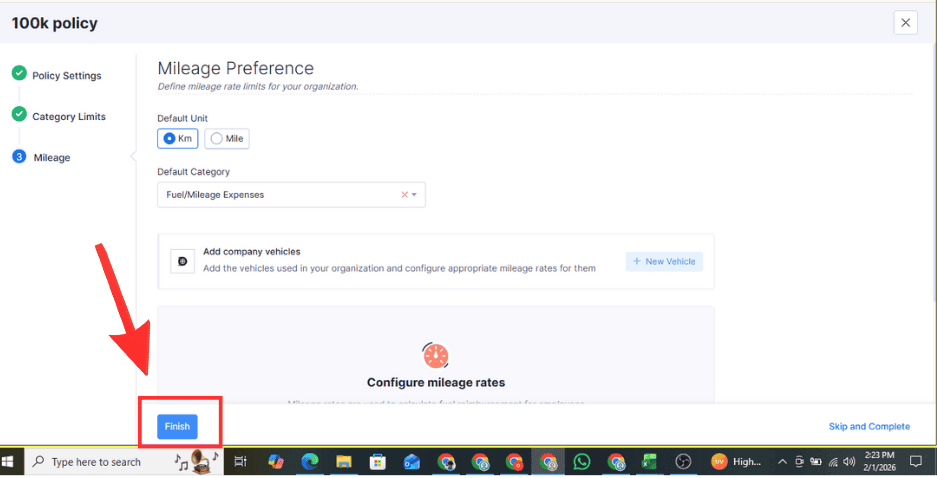
STEP 9: Click on the "finish" button when done
You can skip the mileage preference as it is not always applicable only in some rare cases where expenses are measured by using mileage.
Conclusion
In this guide, we’ve walked you through the simple and quick steps to enforce expense policies in Zoho Expense.
If you need advanced customization on Zoho Expense, Zoho CRM or any other Zoho software, kindly reach out to us here for support.