
This guide explains how you can generate, customize, and export inventory reports in Zoho Inventory.
STEP 1: Accessing Zoho Inventory
- Open your web browser.
- Go to Zoho Inventory.
- Log in using your Zoho credentials.
- Select your organization if prompted.
STEP 2: Navigating to the Reports Module
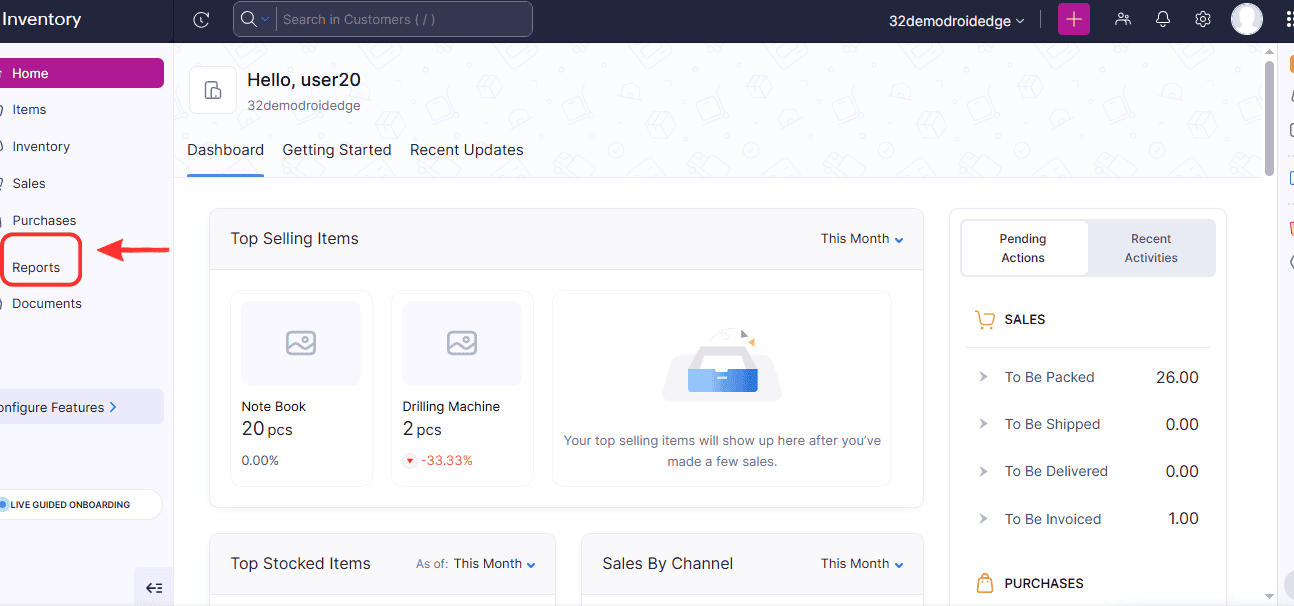
- On the left-hand navigation menu, click Reports.
- The Reports page opens showing multiple report categories.
STEP 3: Selecting an Inventory Report
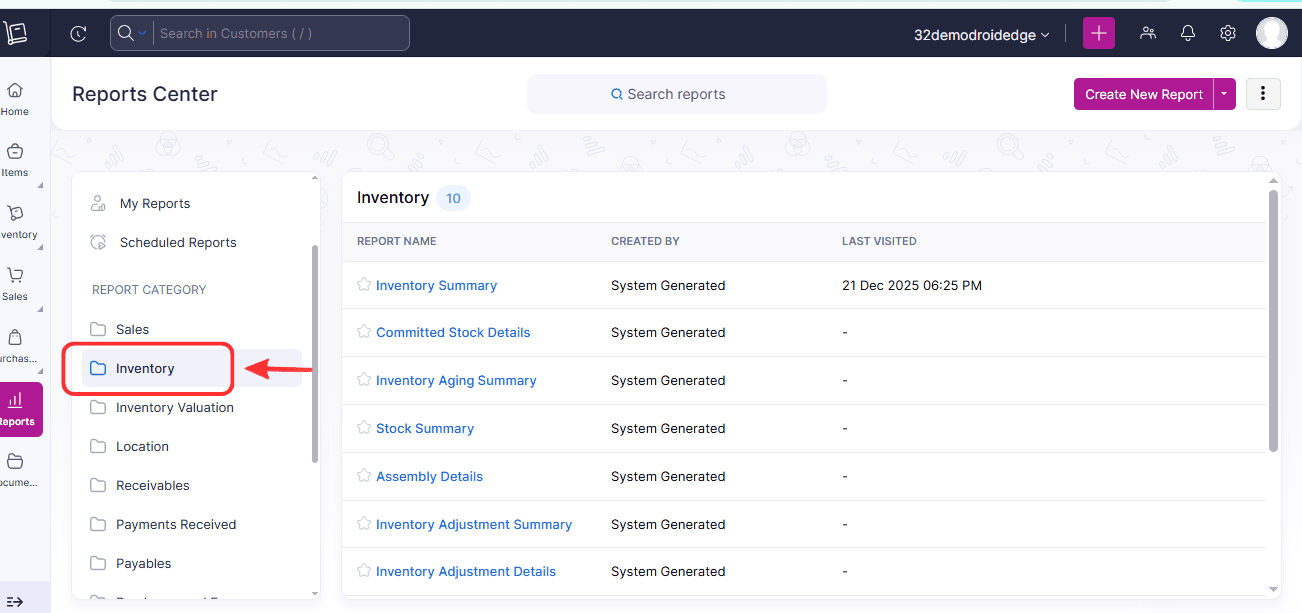
- Under Inventory Reports, click Inventory Summary.
- The report displays item-wise stock data.
STEP 4: Customizing Inventory Reports Using Filters
- Click Filter or Customize at the top of the report.
- Select filtering options such as: Date Range and Item Name
- Click Apply.

STEP 5: Customizing Report Columns
- Click Customize Columns.
- Select or deselect columns such as: SKU, Purchase Rate, Sales Rate, Stock Value, etc.
- Save the customization.
STEP 6: Exporting Inventory Reports
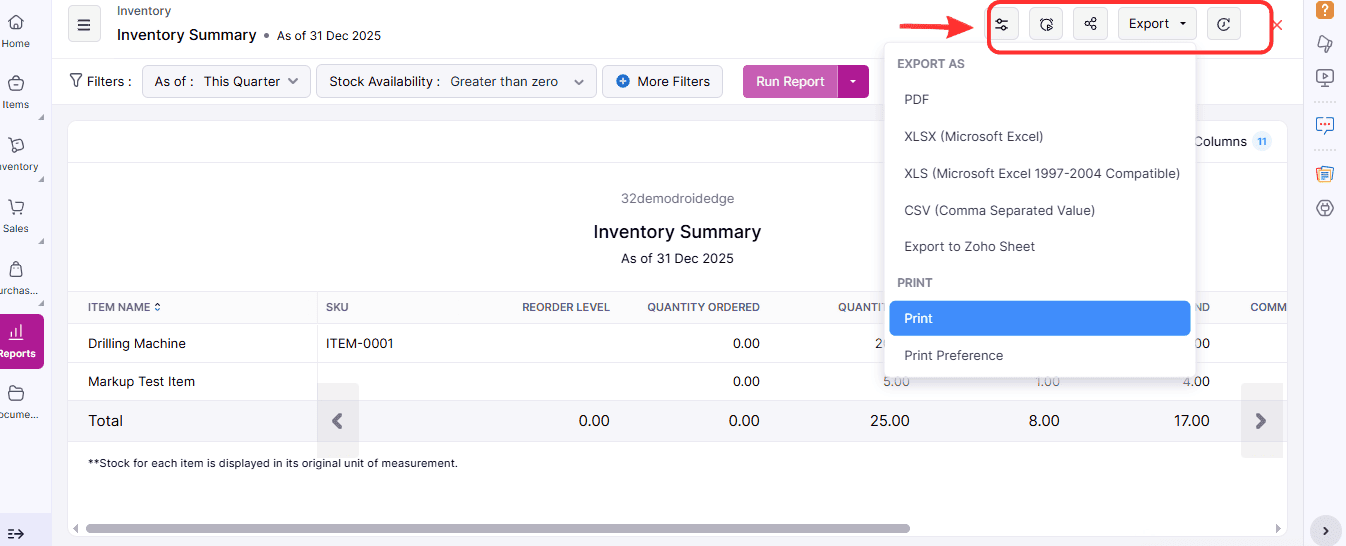
- Click Export at the top of the report
- Choose the export format: PDF, Excel (XLS), or CSV.
- Download or share the report.
Conclusion
This short guide has showed you the step-by-step on How to Generate and Customize an Inventory report.