
If you just signed up for Zoho Books/Inventory and you would like to set up reader point for your inventory items in the system, this quick guide will help you do that.
Kindly follow the below steps accordingly.
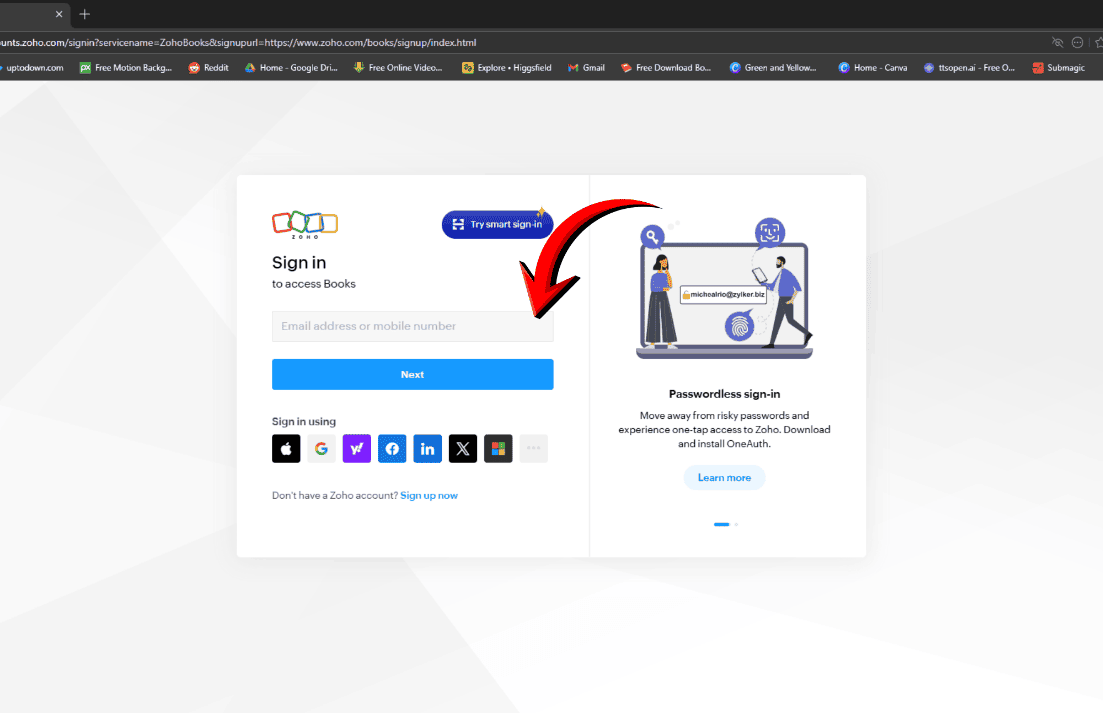
STEP 1: Log in to Zoho Books
Open your browser and access Zoho Books using books.zoho.com
Enter your username and password to access your dashboard
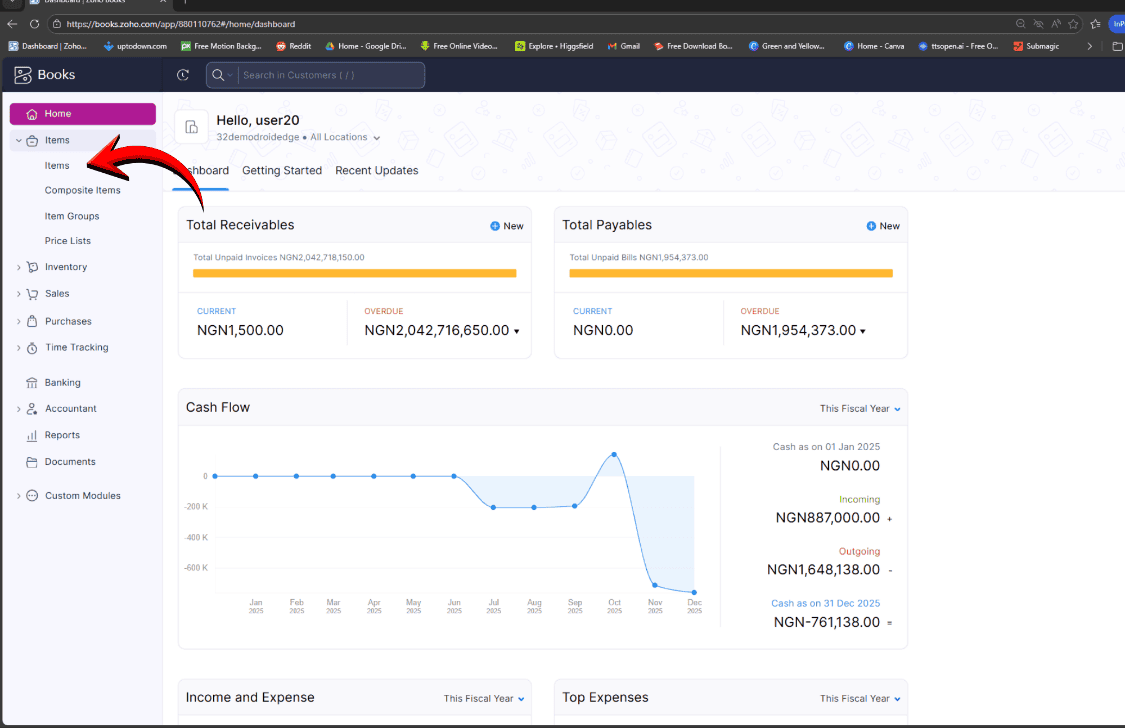
STEP 2: Go to the Items Module
From the main menu on the left, click Items.
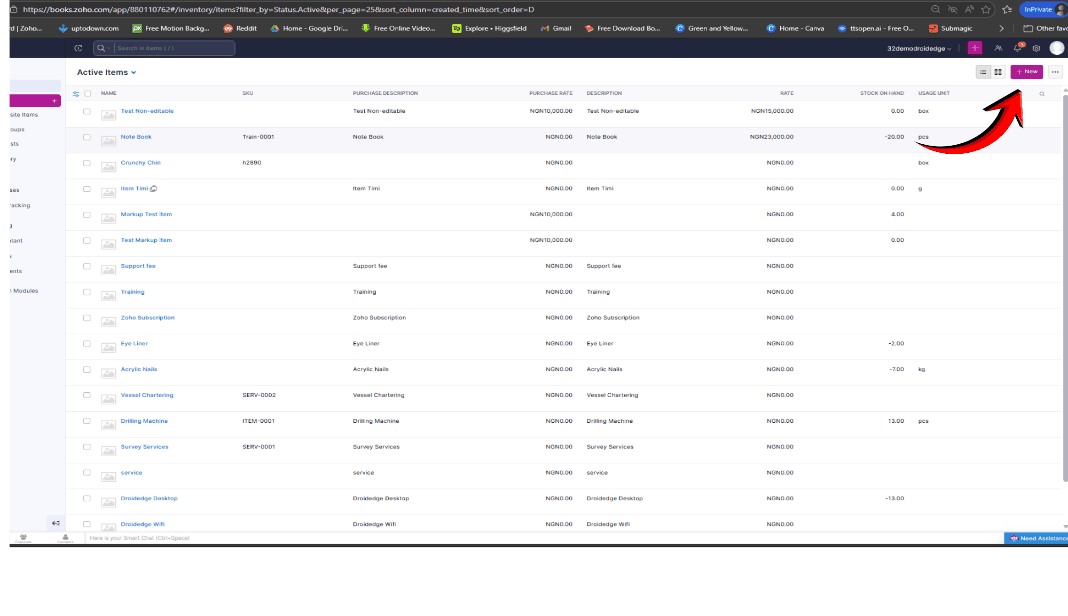
STEP 3: Click on create new item or use an existing item.
The system will take you to the item creation page.
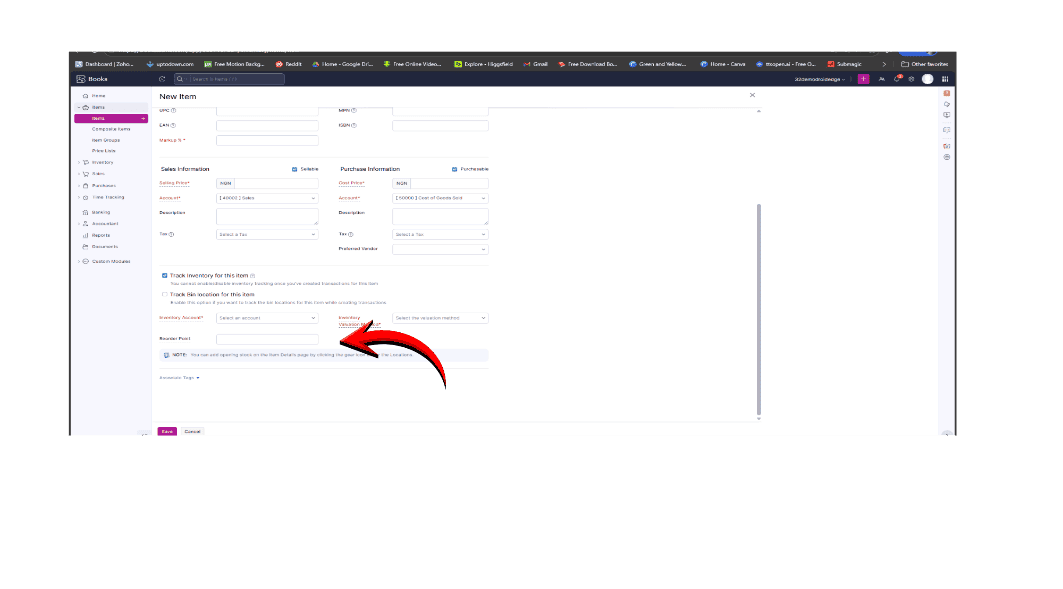
STEP 4: Fill in item details
Enter the relevant information while creating, including fields like: Reorder point.
Then Click on the “Save” Button.
Conclusion
In this quick guide, we have been able to show you the step-by-step process on how you can set up a reorder point for your inventory items in Zoho Books.
If you require further assistance, please contact us here.