
For many small businesses, tracking accounting records often begins with spreadsheets, handwritten notes, email threads, or a mix of disconnected tools that gradually evolve into the "official" record of the business. While these methods may seem effective in the early stages, they become less capable as transaction volumes increase.
This is one of the reasons many Nigerian businesses are adopting cloud accounting solutions like Zoho Books. Designed for small and growing businesses, Zoho Books is steps ahead in managing business finances by bringing invoicing, expense tracking, banking, reporting, and automation into a single platform.
If you are new to Zoho Books, getting started may seem overwhelming at first. The good news is that setting up your account and creating your first invoice is a straightforward process that can be completed in a short time.
Why start with Zoho Books?
Before diving into the setup process, it is important to understand what Zoho Books helps Nigerian businesses achieve.
Zoho Books is a comprehensive accounting and business finance management solution that enables organizations to manage sales, purchases, banking, inventory, expenses, and financial reporting from a single platform.
Unlike traditional accounting systems that focus solely on bookkeeping, Zoho Books supports the entire financial lifecycle of a business. It allows organizations to track income and expenses, manage customer invoices, monitor vendor transactions, reconcile bank accounts, and generate financial reports in real time.
Step 1: Create Your Zoho Books Account
The first step is creating your Zoho Books organization.
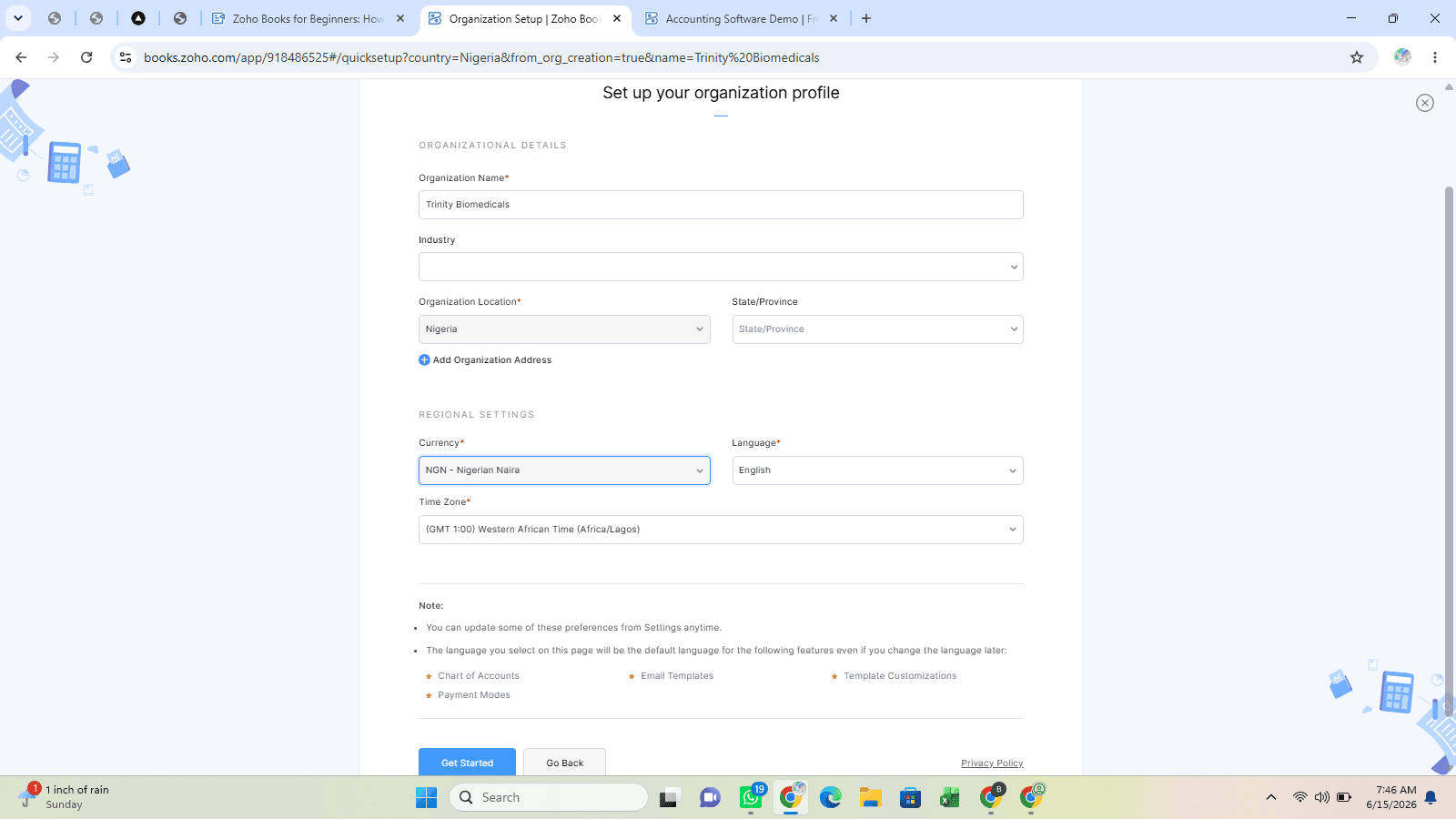
After signing up, you will be prompted to provide basic information about your business, including:
Business name
Industry
Business location
Base currency
Financial year settings
Time zone
These settings form the foundation of your accounting environment and will influence how transactions are recorded and reported.
Step 2: Configure Your Organization Settings
Once your account has been created, the next step is customizing your organization settings.
This includes:
- Business Information
Add your company logo, address, contact information, and tax details.
These details automatically appear on invoices and other customer-facing documents, helping maintain a professional brand image.
- Tax Configuration
Depending on your country and business requirements, configure applicable tax settings.
Proper tax configuration ensures that transactions are recorded accurately and helps simplify compliance and reporting.
- Payment Preferences
Define the payment methods you want customers to use when settling invoices.
Providing multiple payment options can improve customer convenience and contribute to faster collections.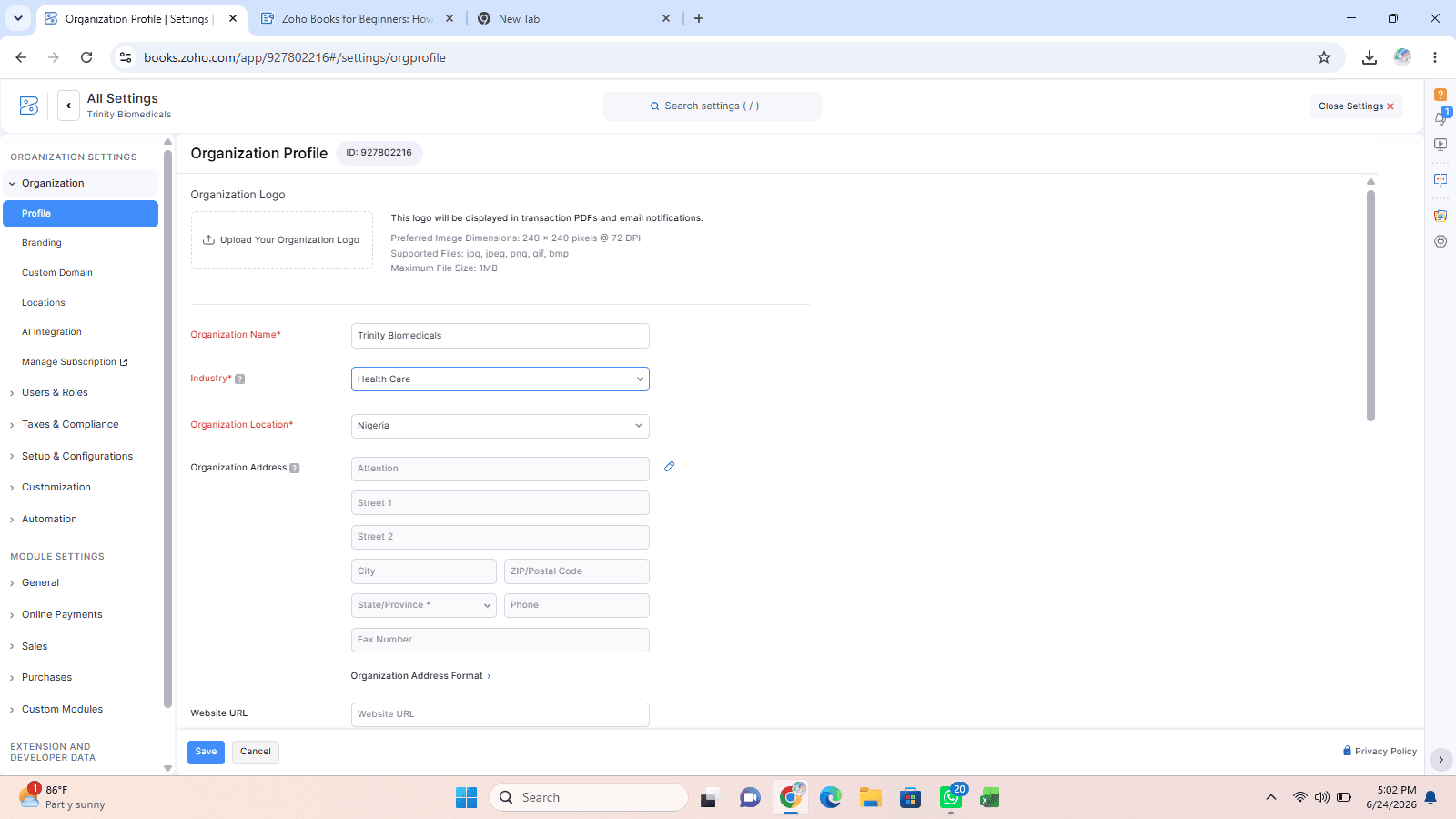
Step 3: Add Your Customers
Before you can create an invoice, you need to create customer records.
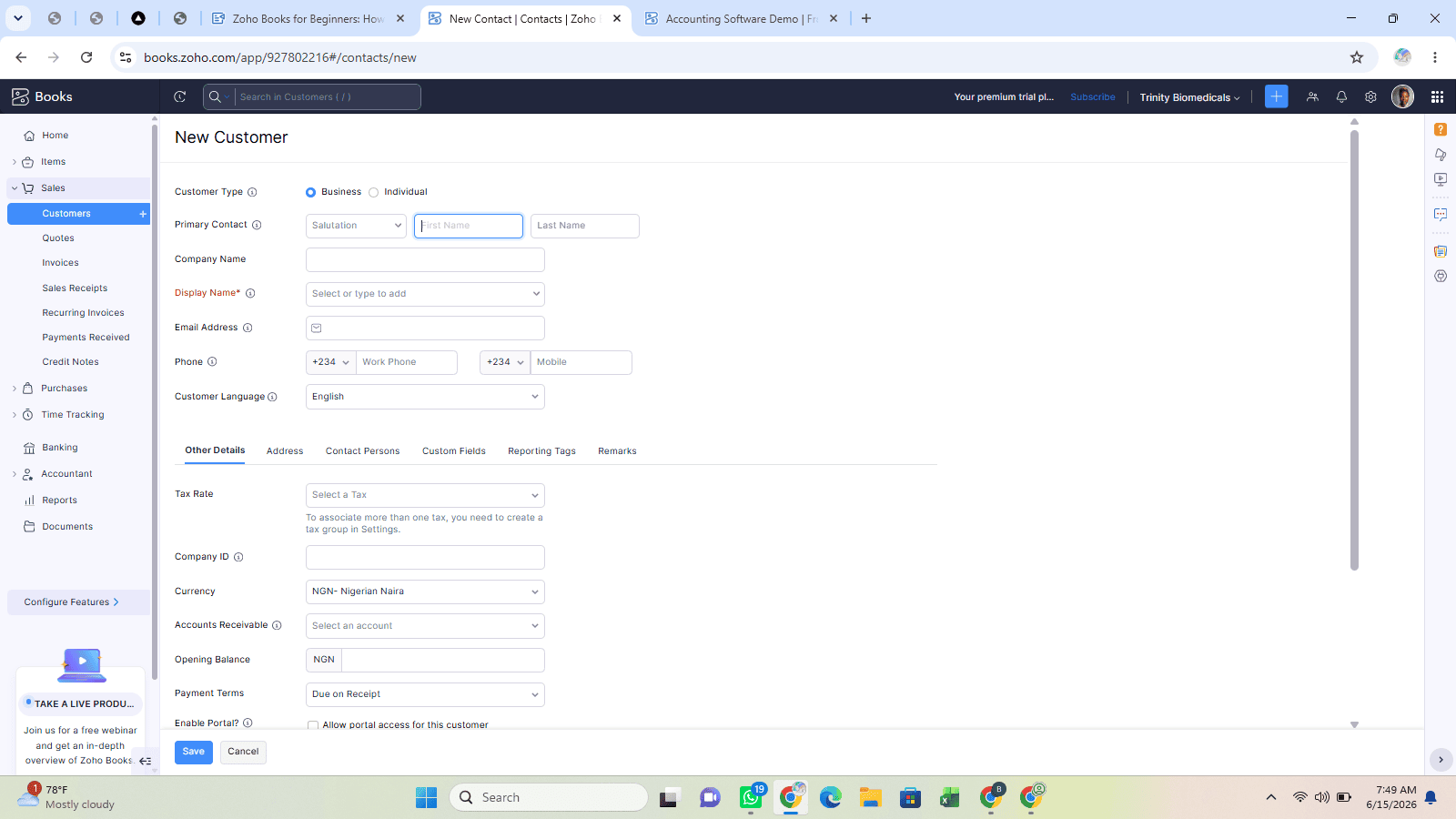
In Zoho Books, customers are stored within the Contacts module.
When adding a customer, it is good practice to capture:
Customer name
Company name
Email address
Phone number
Billing address
Payment terms
Maintaining complete customer records improves communication, simplifies invoicing, and creates a centralized customer database that can be referenced whenever needed.
Step 4: Create Your Products or Services
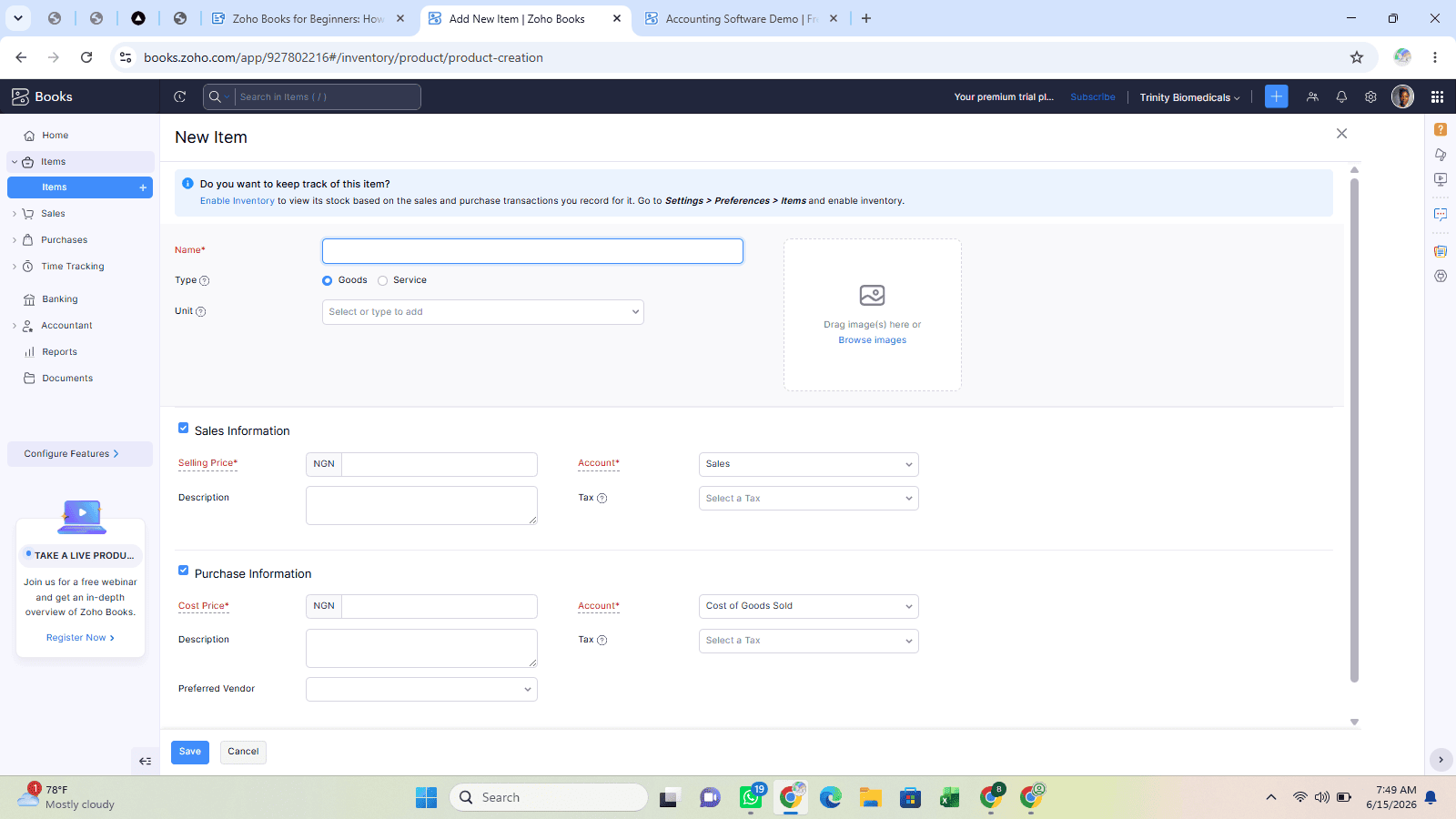
The next step is setting up the items you intend to sell.
Whether your business provides consulting services, sells products, or offers subscription-based solutions, Zoho Books allows you to create a structured catalogue of items.
For each item, you can define:
Item name
Description
Selling price
Tax information
Unit of measurement
This setup eliminates repetitive data entry and ensures consistency across invoices.
For service-based businesses, this could include consulting hours, implementation services, training sessions, or support packages.
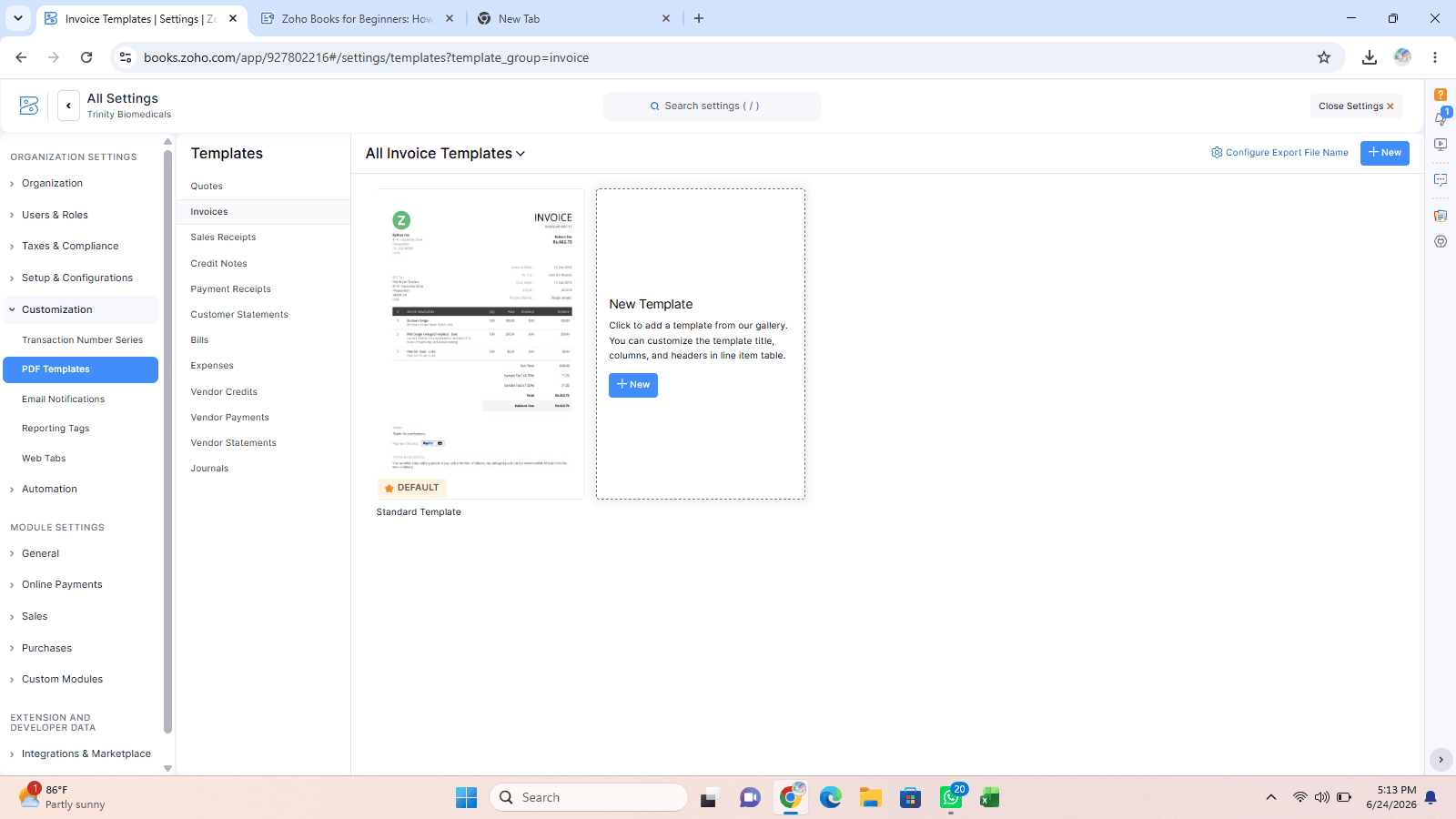
Step 5: Customize Your Invoice Template
Your invoice is often one of the most important documents customers receive from your organization.
A well-designed invoice reflects professionalism and reinforces your brand.
Zoho Books allows users to customize invoice templates by:
Adding company branding
Updating colors and layout
Including payment instructions
Modifying invoice fields
Adjusting terms and conditions
Step 6: Create Your First Invoice
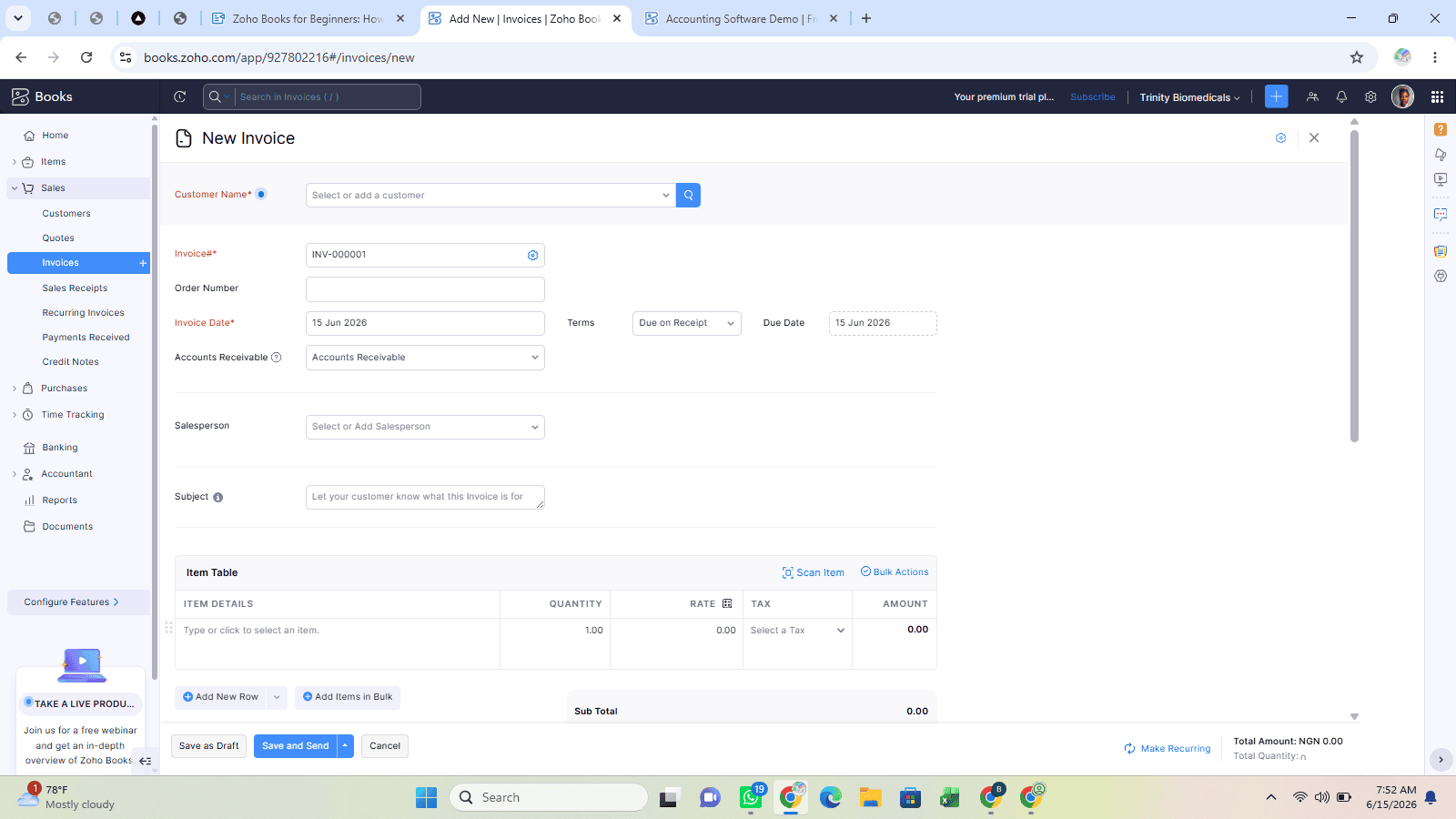
With your business settings, customers, and products configured, you are now ready to create your first invoice.
The process is straightforward.
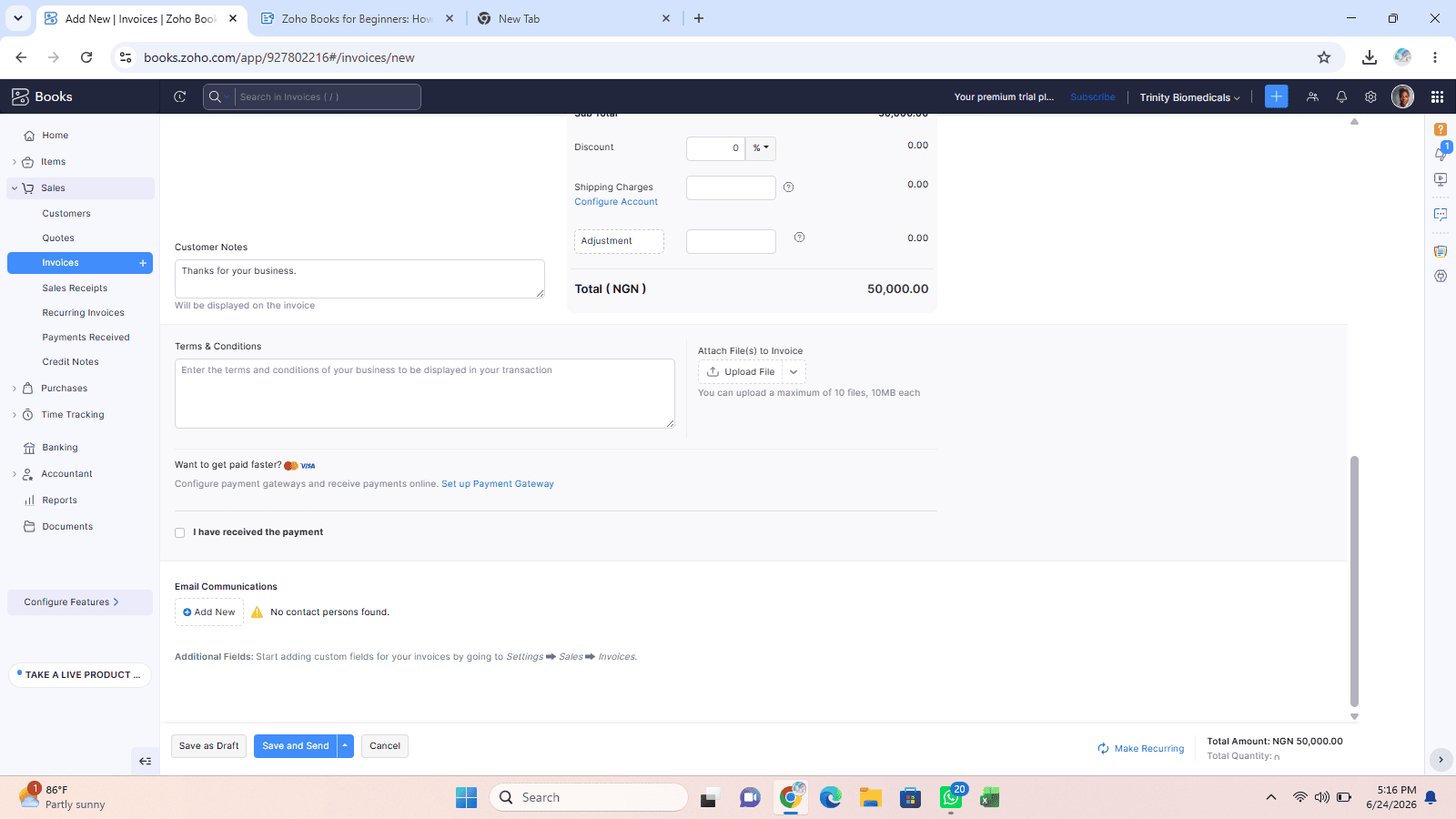
Navigate to the Invoices module and select the option to create a new invoice, you will then:
Select the customer.
Choose the product or service being billed.
Specify quantities and pricing.
Apply taxes where necessary.
Review the invoice details.
Save the invoice.
Before sending, take a moment to verify that all information is accurate.
Step 7: Send the Invoice
Once the invoice has been reviewed, it can be sent directly from Zoho Books.
The system allows businesses to email invoices to customers without switching between applications. This provides several advantages:
Faster invoice delivery
Reduced manual effort
Improved record keeping
Better visibility into invoice status
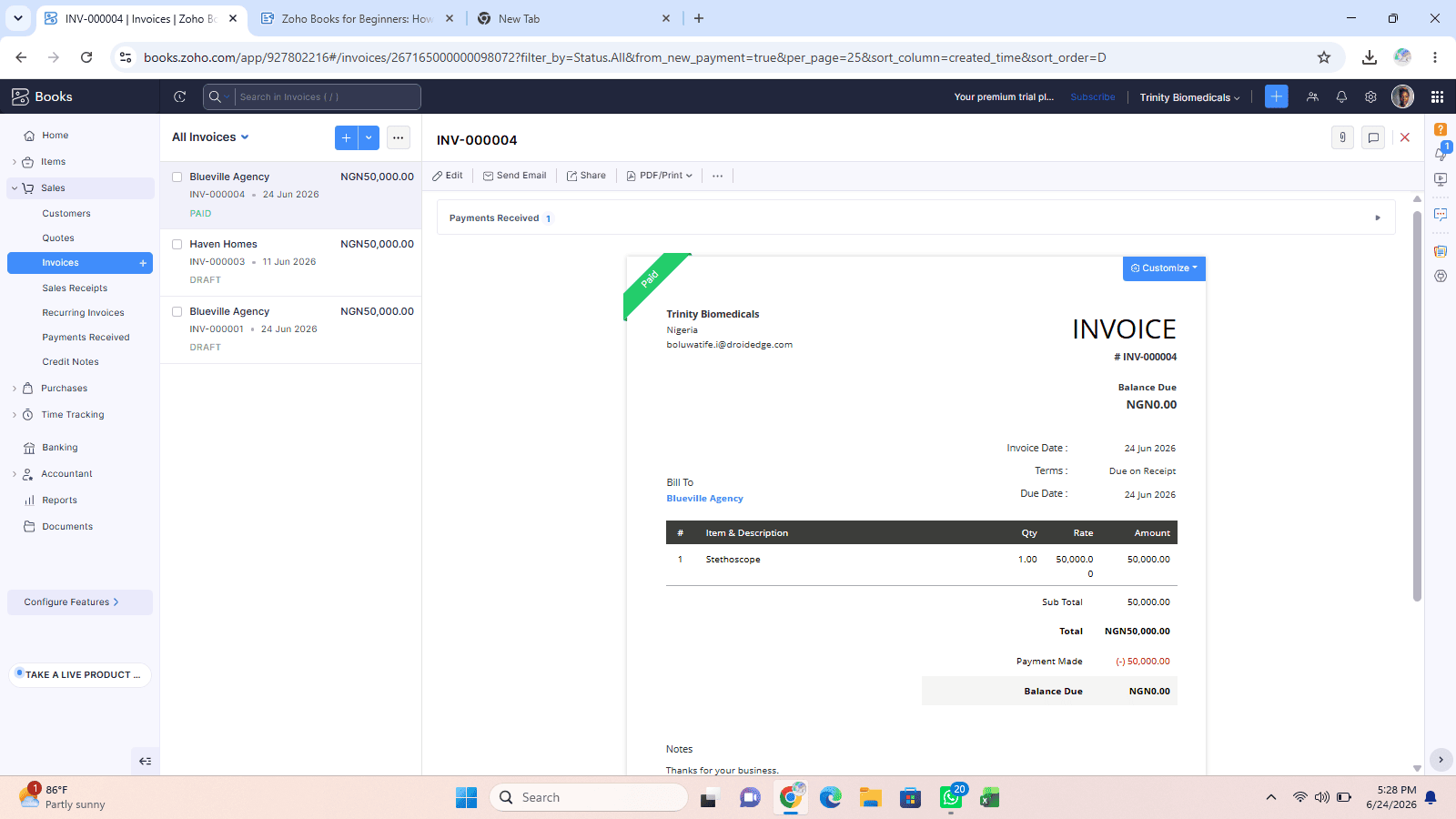
One particularly useful feature is the ability to track invoice activity.
Businesses can monitor whether an invoice has been sent, viewed, paid, or remains outstanding. This visibility helps improve collections and reduces the likelihood of missed follow-ups.
Step 8: Monitor Payment Status
Sending an invoice is only part of the process. Effective cash flow management requires tracking payments and following up on outstanding balances.
Zoho Books provides a central view of receivables, making it easy to identify unpaid invoices and monitor customer payment behavior.
Businesses can also automate payment reminders, reducing the need for manual follow-up while maintaining consistent communication with customers.
Common Beginner Mistakes to Avoid
While Zoho Books is designed to be user-friendly, there are several mistakes new users should avoid.
1. Skipping Initial Setup
Many users rush through configuration and begin recording transactions immediately.
Taking the time to configure organizational settings properly creates a stronger foundation for future reporting and financial management.
2. Creating Incomplete Customer Records
Missing customer information can lead to invoicing errors and communication challenges.
Always maintain complete and accurate customer records.
3. Ignoring Invoice Customization
Generic invoices can appear unprofessional.
Customizing invoice templates helps strengthen your brand image and improve the customer experience.
4. Delaying Payment Follow-Ups
Outstanding invoices can negatively impact cash flow.
Using Zoho Books' tracking and reminder features helps ensure timely collections.Conclusion
Getting started with accounting software does not have to be complicated. By following a structured setup process, you can quickly establish an organized financial system that supports growth and improves operational efficiency.
In this guide, we have walked you through the simple and quick steps to set up your account and send your first invoice.