
Receiving inventory is a critical step in keeping your stock levels accurate and your business running smoothly. In Zoho Inventory, receiving items ensures your records match what's physically in your warehouse, helping you avoid stockouts, overstocking, and order fulfillment issues.
This guide walks you through the exact steps to receive inventory items in Zoho.Step 1: Open purchase order under the purchase module
Log in to your Zoho Books/Inventory dashboard
Click purchase order to raise a purchase order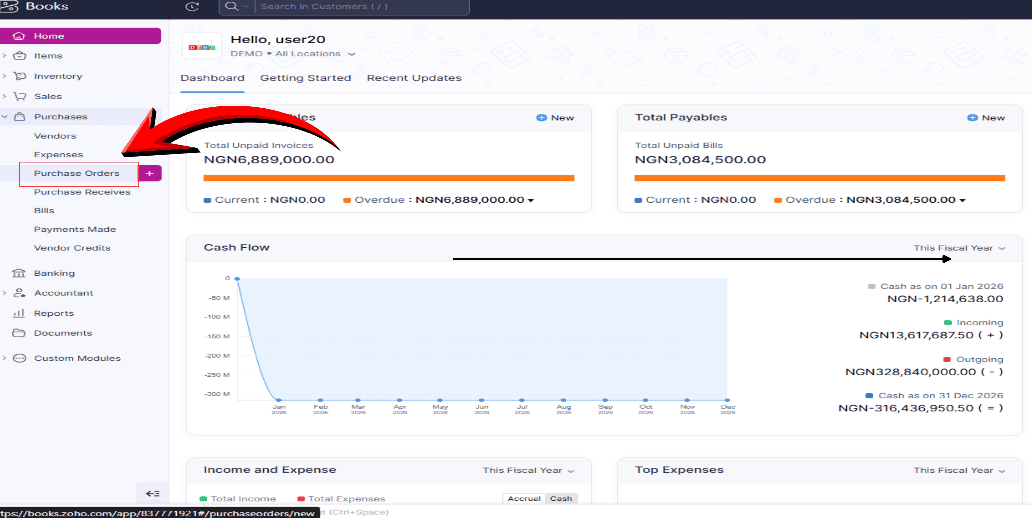
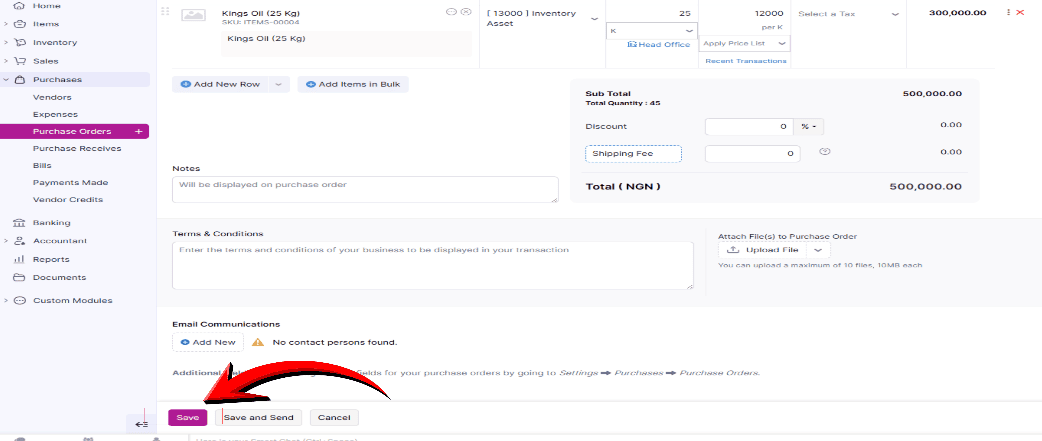
Step 2: Click the save button
Click save after creating the purchase order
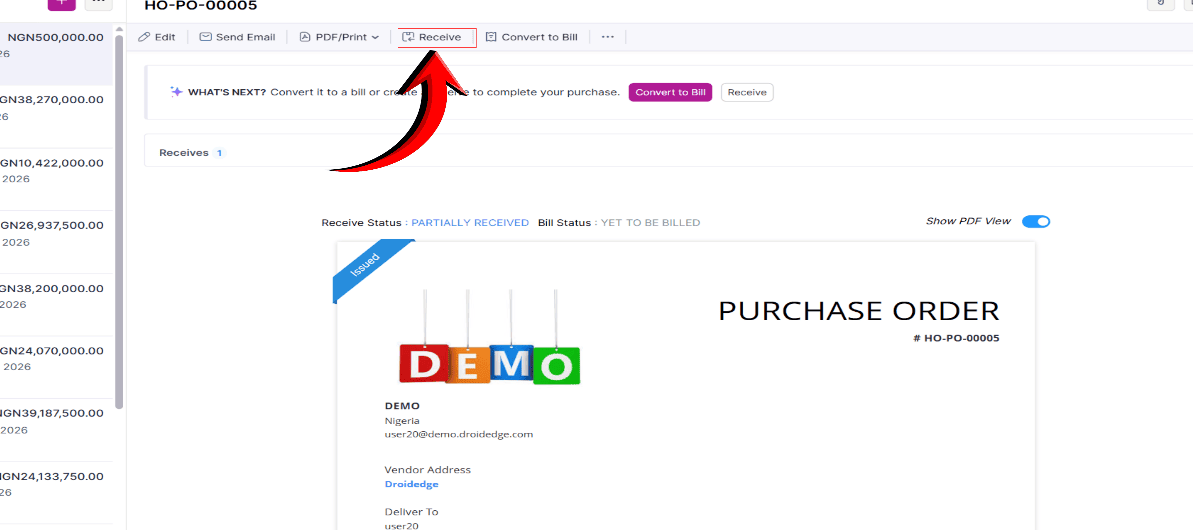
Step 3: Click on the receive button
Click on the receive button to receive the inventory items purchased (based on the purchase order you raised in Zoho)
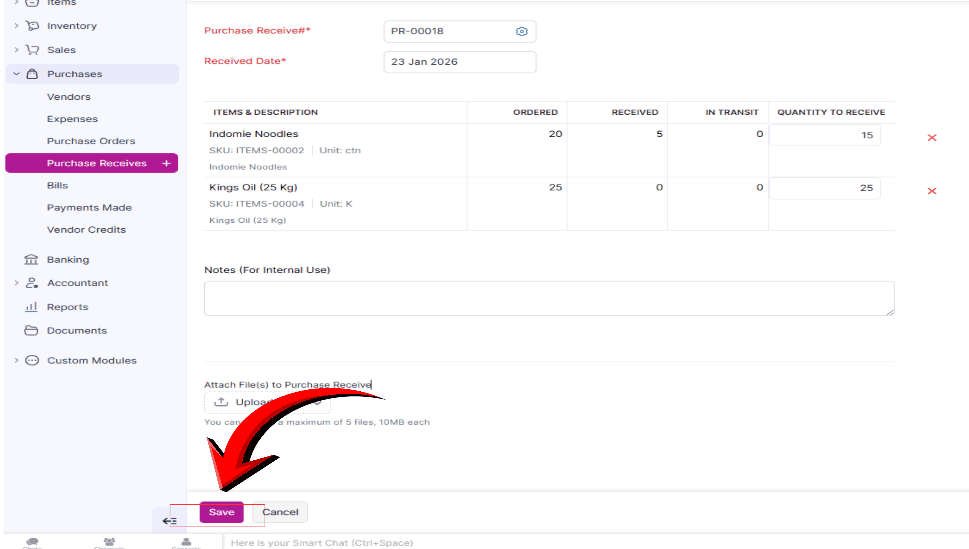
Step 4: Click Save
Confirm the stocks received and click the save button
Conclusion
In this guide, we’ve walked you through the simple and quick steps to receive inventory items in Zoho Inventory or Books, helping you keep your stock levels accurate and your operations running smoothly. Whether you’re receiving a single shipment or managing bulk inventory, these steps will get it done right.
If you need advanced customization on Zoho Inventory, Zoho Books or just any other Zoho software, kindly reach out to us here for support.